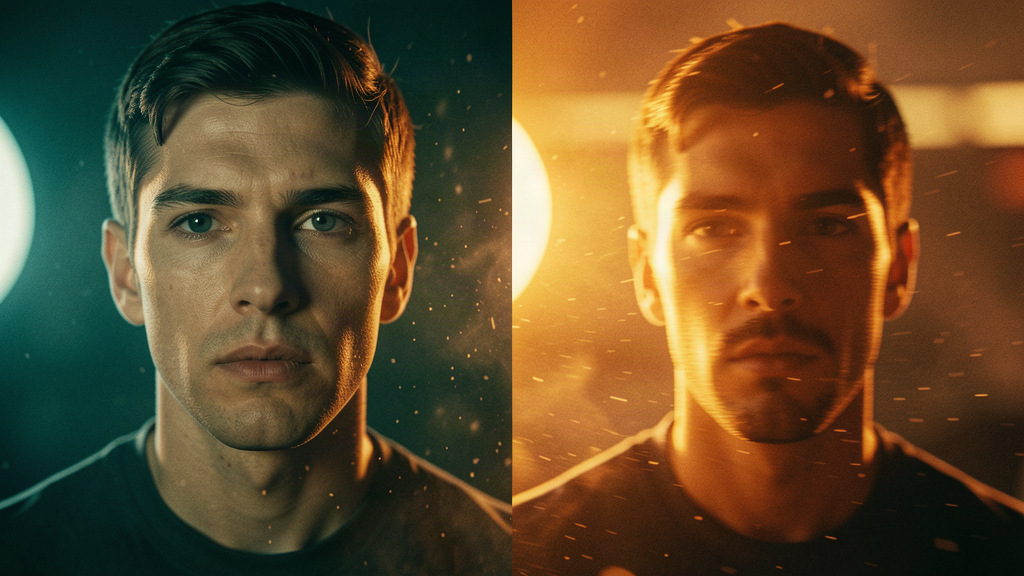
From Keyframe to Final Cut: The Three-Phase Pipeline That Makes Character Consistency Real
Here's the problem every AI filmmaker hits by minute two: your character looks perfect in the keyframe. Then you generate video, and the face drifts. The jacket changes color. The silhouette morphs. You spend the rest of the day prompt-chasing instead of directing.
Genflick's three-phase pipeline... AI Director, Image, Video... exists to solve exactly this. This week, I'm going to walk you through the workflow that takes a character from a one-sentence idea to a finished, consistent clip using the current Genflick stack: Grok 4.7 as your AI Director, GPT Image 2.5 Sunburst for keyframes, and Seedance 2.5 for video.
Step 1: AI Director (Grok 4.7) — Write the Plan
Start in Film Studio with one sentence. Something like: "A detective walks into a neon-lit bar, finds a note on the counter, and looks up to see someone watching from the back booth."
Grok 4.7, your AI Director, takes that sentence and builds the production plan: scene breakdown, character descriptions, shot list, lighting notes, and the keyframe prompts it will feed to the image model. The plan is structured, not freeform... it defines identity cues (detective's trench coat, slicked-back hair, scar on left cheek) that need to survive across every shot.
The trick: be specific about identity in the plan, not in the prompts. If the Director knows the detective has a scar on the left cheek and a worn leather jacket with brass buttons, every keyframe prompt inherits those cues. You're not re-describing the character every time. You're directing one plan that propagates.
Step 2: Image / Keyframe Generation (GPT Image 2.5 Sunburst) — Lock the Look
The GenBench benchmark published October 8 tested what happens when you push unusual character features through edit chains. The finding: two sequential edits on the same image push anatomy further than any text prompt. But they also found that Sunburst produces the cleanest photographic texture of the current image models... real skin, individual hairs, flash-bounced specular highlights.
Here's how to use that in your pipeline:
1. Generate the hero keyframe first. Use Sunburst for the establishing shot... the frame that defines the character. This is your reference image for every downstream shot. Make it count. The GenBench benchmark used $0.011 per Sunburst image for usage-derived cost. That's cheap enough to generate 10 and pick the keeper.
2. Edit, don't re-prompt. If the detective's scar isn't prominent enough, edit the hero image instead of rewriting the prompt. Sunburst's edit chain holds identity... same face, same jacket, same room... while pushing the specific feature harder. The GenBench cowboy's chin grew from "slightly long" to "anvil" in two edits. Same face, same shirt, same room. Just more chin.
3. Generate scene variants from the hero. Once the look is locked, generate the other keyframes... the bar entrance, the note on the counter, the figure in the back booth. Use the hero image as a reference input so the character stays consistent across shots.
Step 3: Video Generation (Seedance 2.5) — Animate the Keyframes
Seedance 2.5 is where the keyframes become a film. It takes up to 50 reference inputs... images, character sheets, style frames... and generates up to 30 seconds of video in a single pass with synchronized audio. That's the difference between stitching ten 3-second clips together and getting one coherent shot.
Here's the workflow:
1. Feed the hero keyframe as the first-frame reference. Seedance 2.5 respects first-frame input... those pixels are frame 0. The character, the lighting, the composition from your Sunburst keyframe becomes the opening of the video clip.
2. Add the scene keyframes as reference images. The bar entrance, the note, the figure in the booth. Seedance 2.5 can use up to 50 references in a single generation. It uses them as visual anchors... not exact frames to match, but identity and style cues that keep the clip from drifting.
3. Write the motion prompt. Don't describe the scene again... the keyframes already did that. Describe the motion. "Camera pushes in from the door toward the bar. The detective walks three steps, stops, sees the note. Slow dolly left as he reaches for it. The figure in the back booth shifts." Motion language, not scene language.
4. Review, recut, regenerate. In Genflick's Film Studio, you approve takes and regenerate specific shots without restarting the whole production. If the face drifted on shot 3, regenerate just that clip with a stronger reference set. If the motion was wrong, rewrite the motion prompt and keep the keyframes.
Why This Pipeline Works
The three-phase pipeline works because each phase feeds the next with structured data, not vibes. The AI Director outputs a plan with identity cues. The Image phase turns those cues into keyframes that lock the look. The Video phase takes those keyframes as references and animates them into a clip where the character stays consistent.
The GenBench benchmark proved the core insight: edits preserve identity better than re-prompting. That's why the pipeline goes Director → Image → Video instead of Director → Video. The image phase is the consistency lock. Skip it, and you're asking a video model to hold a face it's never seen before... through 30 seconds of motion.
Run it on Genflick. One sentence in. A finished clip out. Your director, your keyframes, your dailies... all in one place.
Genflick is building the AI filmmaking stack. Start free, no card. Sign up here.