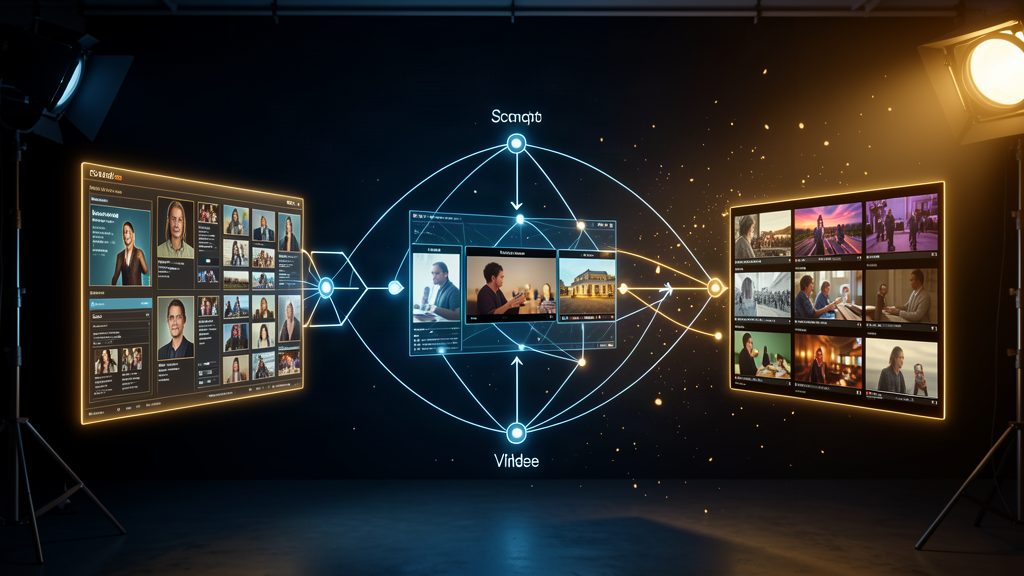
The Three-Phase Pipeline: From Chat to Finished Film on Genflick
Most people trying AI filmmaking for the first time open a video model, type a prompt, and get a 5-second clip. Then they do it again. And again. And 40 generations later they have a folder of clips that don't connect, characters who don't match, and no story.
The problem isn't the model. It's the pipeline. Or the lack of one.
Genflick's Film Studio runs a three-phase pipeline: AI Director (story and planning) to Image / Keyframe generation (visuals) to Video generation (motion). This week's workflow walks through all three phases using the most current Genflick-supported models, with GenBench research backing each step.
Phase 1: AI Director — Plan the Scene Before You Render
Start in Genflick's chat-as-the-studio interface. This is the AI Director phase. The model reads your premise and outputs a structured scene plan: shot list, camera moves, character blocking, dialogue beats, and the exact prompts for each subsequent phase.
Use Grok 4.7 (AI Director phase) for this. GenBench's agent research shows Grok 4.7 scoring strong on planning quality and instruction following, with lower cost per generation than the GPT-6 family. The scene plan it produces is your blueprint for the next two phases.
Write your premise as a paragraph, not a prompt. "A detective walks into a neon-lit ramen shop at midnight. The cook recognizes him. Tension." Let the AI Director break that into 4-6 shots with camera directions, character positions, and the emotional beat of each cut.
The AI Director's job isn't to write your film. It's to structure your decisions so the Image and Video phases have something to follow.
Phase 2: Image / Keyframe — Lock the Look Before the Motion
Every shot in your scene plan needs a visual reference. This is where most AI filmmakers skip ahead and pay for it later. Generate your keyframes first. Lock your character's face, your set's lighting, your wardrobe, and your camera framing in still images before you animate anything.
Use GPT Image 2.5 Sunburst (Image phase, current Genflick default). Sunburst handles detailed character reference sheets and set designs with higher fidelity than Flare. Feed the AI Director's visual descriptions into Sunburst and generate 2-3 keyframe images per shot: a wide, a medium, and a close-up if the shot calls for one.
For character consistency across shots, use Genflick's character reference system. Upload your character sheet as a reference image and every subsequent generation carries the same face, build, and wardrobe. This is the difference between a sequence that cuts together and a sequence that looks like four different actors.
Craft tip: Generate at the aspect ratio you'll deliver in. 16:9 for YouTube and web. 9:16 for TikTok and Reels. Sunburst respects aspect ratio natively, so frame your composition in the prompt and it holds.
Phase 3: Video — Animate the Frame You Already Locked
Now you have a scene plan and keyframe images. The Video phase takes a keyframe as a first frame and animates it following the AI Director's camera directions. This is where Seedance 2.5 earns its keep.
Use Seedance 2.5 (Video phase) for the shots that matter. It generates up to 30 seconds of native 4K video in a single pass with synchronized audio, takes up to 50 reference inputs (your keyframes, your character sheets, a reference clip for camera language), and holds character consistency across the full clip.
The workflow: take the Sunburst keyframe from Phase 2 as your first frame. Add the AI Director's camera move as the motion description. Add your character reference sheet as a secondary image input. Seedance 2.5 animates the frame with the character locked, the lighting consistent, and the camera doing what the plan said it should do.
For rapid iteration before committing to Seedance 2.5, test the motion with Seedance 2.0 Fast (cheaper, 480p/720p, same reference system). If the motion works at 480p, commit the keeper to Seedance 2.5 at 4K. Same keyframe, same character sheet, better resolution. GenBench's cost research across the Seedance family shows the Fast tier running at a fraction of the cost of Regular for the same reference pipeline.
Putting It Together in Film Studio
Genflick's Film Studio ties the three phases into one session. The chat interface is the AI Director. The Image phase panels are your keyframe generators. The Video phase is your animation engine. You stay in one workspace, and every phase references the output of the one before it.
The workflow, condensed:
1. Chat the premise. Get a scene plan from Grok 4.7.
2. Generate character reference sheets with GPT Image 2.5 Sunburst.
3. Generate 2-3 keyframes per shot with Sunburst.
4. Test motion with Seedance 2.0 Fast at 480p.
5. Commit the keeper to Seedance 2.5 at 4K with the same keyframe as first frame.
6. Publish to socials or to a Genflick movie-streaming page.
That's the pipeline. Six steps. One workspace. The stack is built for this.
Why This Matters
The filmmakers getting results right now aren't the ones with the best prompts. They're the ones with the best pipeline. A great prompt into a disconnected model gives you a clip. A structured pipeline across AI Director, Image, and Video phases gives you a scene. And scenes become films.
GenBench's 97 reports back this up with data: planning quality from the AI Director phase correlates with output quality from the Video phase. The phases are connected. Treat them that way.
Genflick is building the AI filmmaking stack. Sign up: genflick.com
Model research sourced from GenBench. Try this workflow in Genflick Film Studio.