Runway MCP turned your chat into a director's monitor. Here's the exact workflow to direct a whole scene from a conversation — reference images, multi-shot continuity, and node-based control — without leaving the thread.
Why this changes the workflow
The old way: write a prompt, tab to the generator, paste it, wait, download, tab back. The MCP way: your director's notes and your generator are the same surface. You describe the shot in plain language, drop in a reference image, and the model renders it in the conversation. Iteration happens in the thread, not across five tabs.
Step 1 — Connect Runway MCP
In ChatGPT, open Apps in the left sidebar, search "Runway," click it, then Connect and sign in with your Runway account. It works the same in Claude and Cursor — any MCP-capable assistant. Once connected, Runway's video and image models are callable directly in the chat.
Step 2 — Chat out your scene brief
Describe the scene the way you'd brief a DP: "A woman walks into a rain-soaked diner at night, neon sign flickering, slow push-in, warm practical light against cold blue window light." The more specific you are about camera, lighting, and mood, the better the model holds your intent. This is where the chat format shines — you can refine the brief conversationally before generating a single frame.
Step 3 — Lock consistency with reference images
Drop a reference image into the chat — a character, a location, a color palette — and reference it in your prompt. Kling's elements and Veo's reference slots let you register a character from images or a short video and hold them across shots. For multi-shot continuity, the rule is simple: the last frame of shot one becomes the first frame of shot two, and the model has to respect it.
Step 4 — Use node-based workflows for control
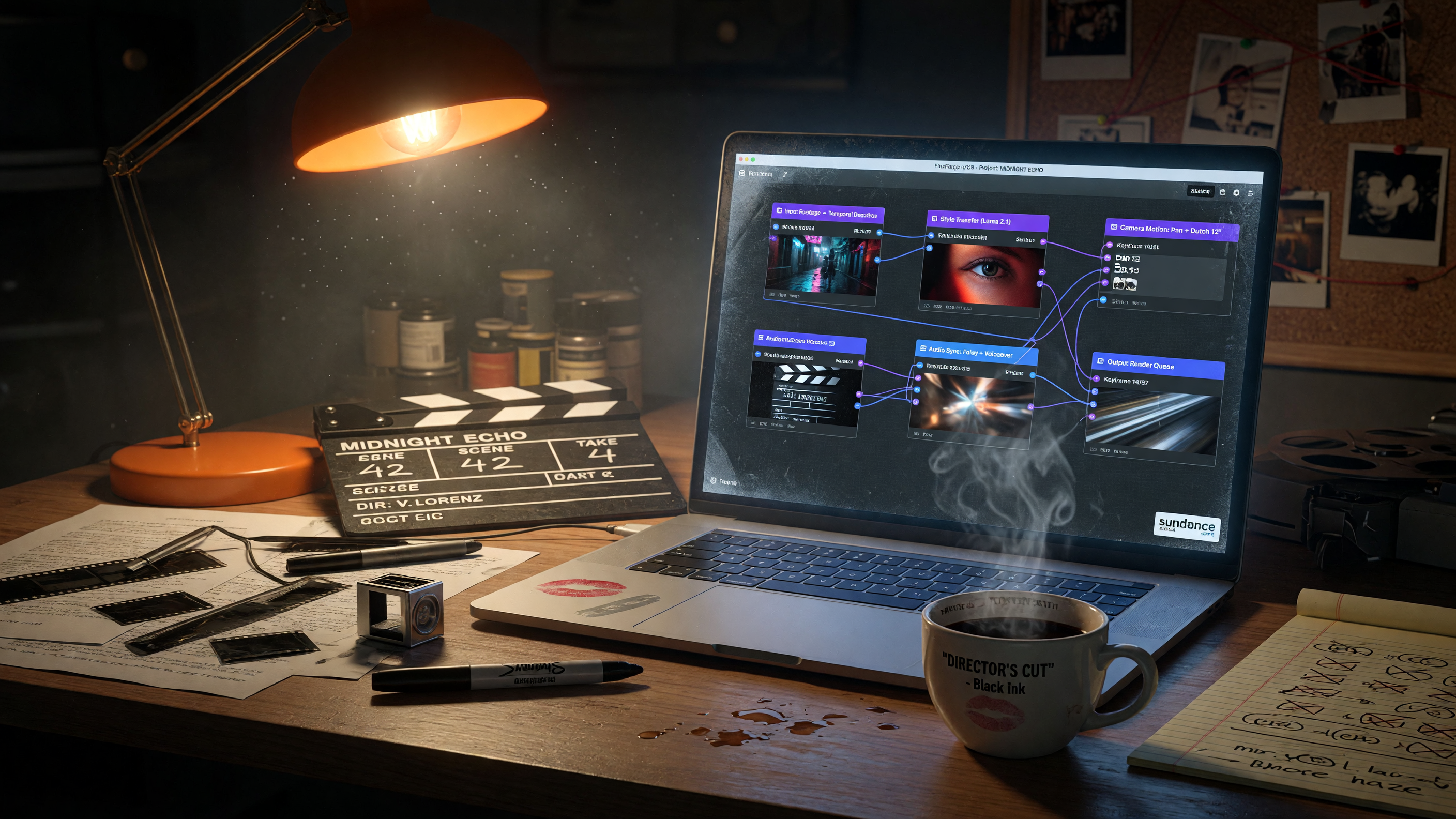
Runway's node-based workflows give you the same control a real edit bay does — wire a reference image into a generation node, chain a multi-shot sequence, route the output into a video-to-video node to fix a nearly-right shot instead of regenerating from scratch. The mental model: the unit of work is the shot, not the scene. A scene is three to eight shots that cut together, and the continuity between them is your job.
Step 5 — Fix, don't regenerate
When a shot is nearly right, use video-to-video to change the angle, relight, or restyle — don't burn generations starting over. Runway's Aleph and Luma's Modify both do this. It's the difference between a $5-per-clip workflow and a $1.50-per-clip workflow, and it's the habit that separates filmmakers who ship from filmmakers who burn credits.
The 5-step recap
1. Connect Runway MCP in your chat app.
2. Brief the scene conversationally — camera, lighting, mood.
3. Lock characters and locations with reference images.
4. Wire multi-shot sequences through node-based workflows.
5. Fix nearly-right shots with video-to-video, never regenerate.
🎬 Try it this week: pick one scene from a film you love, brief it in chat, and see how close you get in five generations. The tools are all in one place now — the only thing left is your direction.
— The AI Film Making crew
Subscribe to AI Film Making · Try Genflick